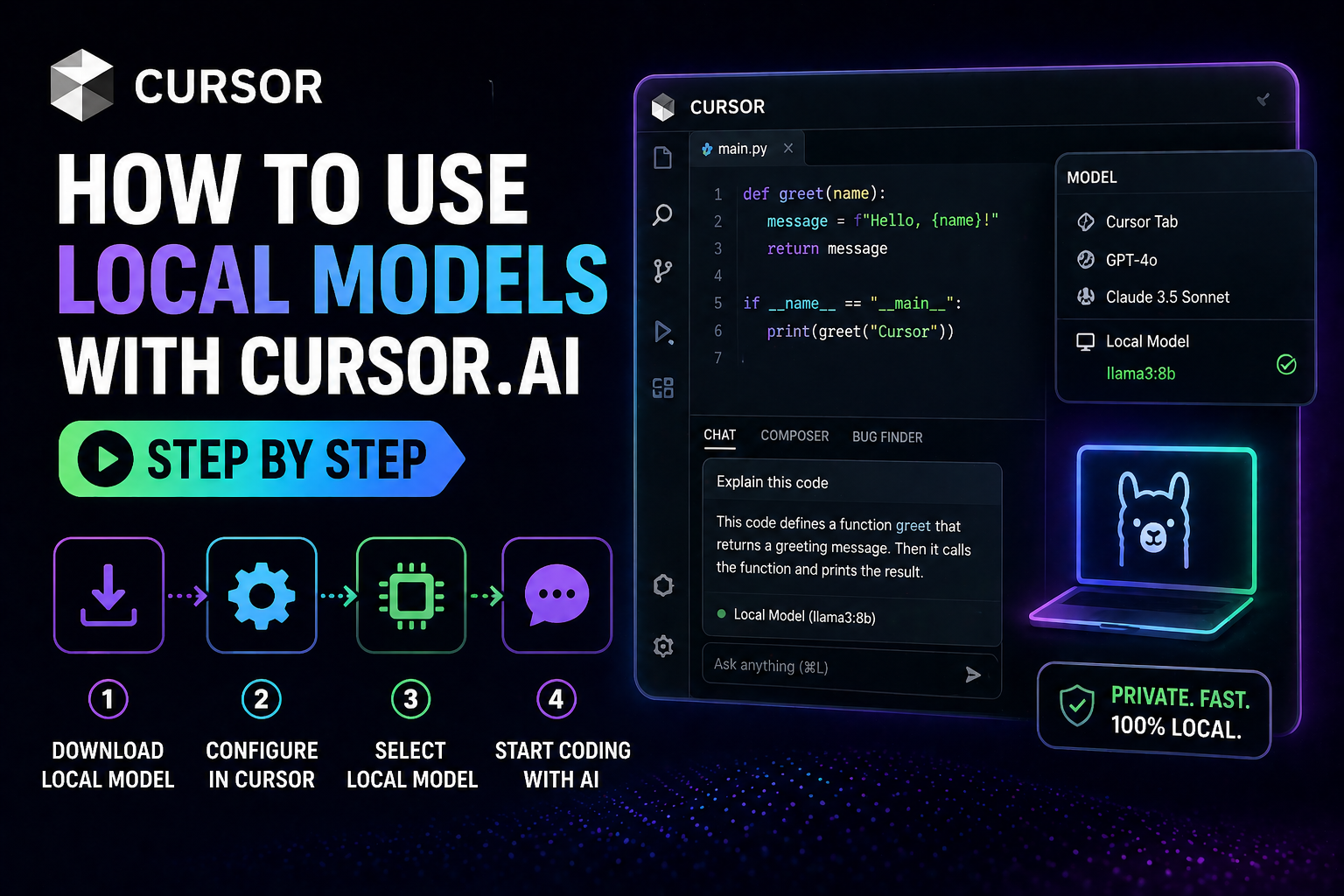
How to Use Local Models with Cursor AI Step by Step (Ollama + LLM Setup 2026)
Ever thought about using a coding assistant without sending your data to the cloud? Many developers worry about sharing their work with outside servers. Reclaiming your privacy is now a real option for today’s work.
Learning how to use local models with Cursor AI lets you connect your machine to smart tools. Whether you want to use Cursor with Ollama, connect a custom local LLM, or simply switch away from cloud-based models — this guide walks you through every step. You’ll keep your work safe, stay in control, and never pay per API call again.
Mastering how to use local models with Cursor AI helps you work faster and protect your ideas. We’ll make the technical steps clear so you can turn your editor into a fully private, offline-capable tool.

Key Takeaways
- Enhance data privacy by keeping your code on your own machine.
- Reduce dependency on cloud-based infrastructure for daily tasks.
- Gain full control over which local LLM versions you run.
- Learn how to change the AI model in Cursor in minutes.
- Follow a simplified configuration process for immediate results.
Understanding the Benefits of Local AI Models in Cursor AI
Starting your development journey means understanding local artificial intelligence. Running these systems on your own hardware means you don’t rely on external servers. This is key for developers who work with sensitive code and want to keep it safe offline.
Using a Cursor AI local model gives you full control over your computer. You don’t have to worry about high API costs or server downtime. This freedom lets you work smoothly, no matter your internet connection.
The main benefit is better data privacy. Your code stays on your machine, so it’s safe from outside exposure. This is a big win for freelancers and small businesses handling confidential client work.
| Feature | Cloud-Based AI | Local AI Models |
|---|---|---|
| Data Privacy | Shared with provider | Fully private |
| Internet Need | Always required | Not required |
| Cost Structure | Subscription/Usage fees | Hardware investment |
| Latency | Depends on network | Depends on hardware |
Adding AI to your workflow should feel empowering, not risky. By using Cursor AI with a local LLM, you get the coding help you need while keeping your work secure.
Prerequisites for Running Local Models with Cursor AI
Before diving in, check your hardware and set up the right local model engine. A solid foundation prevents crashes and keeps your workflow smooth.
Hardware Requirements for Optimal Performance
Running large language models locally requires real computing power. You’ll want at least 16 GB of RAM — 32 GB is strongly recommended for bigger models. A dedicated GPU with sufficient VRAM significantly boosts generation speeds compared to CPU-only inference.
Mac users with Apple Silicon M-series chips perform excellently here due to their unified memory architecture. Windows or Linux users should have a modern processor and enough disk space for model files, which can be several gigabytes each.
Installing Ollama as Your Local Model Engine
Using Cursor with Ollama is the most popular approach because Ollama makes running models like Llama 3, Mistral, or Qwen straightforward. It’s a lightweight tool that lets your editor talk to a Cursor local LLM without needing deep knowledge of machine learning frameworks.
To get started, go to the Ollama website and download the installer for your OS. After installing, the app runs in the background, ready for your commands. This streamlined approach means you spend less time setting up and more time creating.
How to Change the AI Model in Cursor: Configuration Guide
Getting your Cursor AI local model to work with your editor is straightforward once you know the steps. First, make sure your environment can handle custom API requests.
Important: Cursor AI cannot connect directly to a standard
localhostaddress. You need a secure HTTPS endpoint to link your local server to the app. This security requirement keeps your data safe while you use local processing speed.
Accessing the Cursor Settings Menu
Open your editor and find the settings. Click the gear icon in the top right or use the keyboard shortcut. This opens the command palette where you can search for “Settings.”
With the menu open, look at the primary navigation sidebar for configuration categories. This area is your central hub for all customizations, including AI provider settings.
Navigating to the Models Tab
In the settings menu, find the Models section. This is where you configure Cursor AI to work with different intelligence providers — including your own Cursor local model.
To ensure full compatibility, treat your local engine as an OpenAI-compatible provider. Enter your secure HTTPS endpoint in the field and save. After that, Cursor AI will route requests to your local model, giving you a smooth and private coding experience.
Connecting Ollama to Your Cursor Environment
Getting a secure connection is the final setup step to use local models with Cursor AI. Because Cursor requires HTTPS, you need to expose your local Ollama instance to the internet through a secure tunnel.
Setting Up a Secure Tunnel (ngrok or Cloudflare)
Use a secure tunnel like ngrok or Cloudflare Tunnel to expose your local Ollama server. This tunnel is essential — it lets Cursor AI reach your local hardware safely over HTTPS.
For ngrok, run:
ngrok http 11434
For Cloudflare Tunnel, follow their quickstart guide to create a named tunnel pointing to localhost:11434.
Verifying the Local API Endpoint
Before finishing the setup, verify your local server is responding correctly. When your tunnel is active, you’ll receive a public HTTPS URL for your Ollama instance. Try this URL in your browser.
If it works, you’ll see a response from the Ollama server. This confirmation is critical before moving forward.
Adding Custom Local Models to the Cursor Interface
With your URL verified, you’re ready to connect a custom local LLM to Cursor:
- Go to Cursor Settings → Models tab
- Paste your tunnel’s public HTTPS URL into the API base URL field
- Add a model name (e.g.,
llama3,mistral,qwen2.5-coder) - Save and select your model from the model picker
That’s it — you’re now using Cursor AI with a local model for all your coding tasks.
Selecting the Best Local LLM for Cursor AI
Your choice of local model affects how well you handle complex coding and reasoning tasks. Picking the right one is about matching your hardware to your project’s needs.
Choosing Between Llama 3, Mistral, Qwen, and Other Architectures
Each architecture has distinct strengths. Here’s how to think about it:
- Llama 3 — excellent for complex reasoning and multi-step problem solving; great all-rounder for Cursor.
- Mistral / Mixtral — fast and efficient on everyday hardware; ideal for code completion and quick suggestions.
- Qwen 2.5 Coder — purpose-built for code; one of the best local LLMs for Cursor AI if coding is your primary use case.
- DeepSeek Coder — strong performance on code generation, especially for Python and JavaScript.
Consider these factors when choosing:
- Hardware constraints: Larger models need more VRAM and memory.
- Task complexity: Use larger models for deep refactoring; smaller models for everyday autocomplete.
- Architecture compatibility: Confirm your model is supported by your local engine.
Managing Model Downloads and Storage
Good storage management keeps your system tidy. Regularly clean out old models to free up disk space. When downloading new models with Ollama, use exact model names:
ollama pull llama3
ollama pull mistral
ollama pull qwen2.5-coder
Keep your models organized in a single directory and remove unused versions to avoid storage bloat.
How to Use Cursor AI with Local Models for Coding Tasks
Once connected, using Cursor AI with a local LLM feels nearly identical to using cloud-based models — except your code never leaves your machine.
Initiating Chat with Local Models
Open the Cursor chat panel and select your local model from the model picker. Cursor routes requests through your secure tunnel to your Ollama instance running locally. Tips for best results:
- Be specific: Give the model clear context about what you’re building.
- Iterate: If the first response isn’t right, refine your prompt.
- Monitor resources: Watch your RAM and GPU usage to ensure the model has enough headroom.
Utilizing Local Models for Code Completion
You can also use a local model with Cursor for inline code completion. As you type, the model suggests functions, variables, and entire code blocks — all processed locally, with no network delay.
Since everything runs on your hardware, code completion with a local model can be faster than cloud alternatives, especially if you have a capable GPU.
Optimizing Performance for Large Codebases
As your project grows, your Cursor local LLM setup needs tuning to stay efficient.
Adjusting Context Window Settings
The context window controls how much code your model can process at once. Too large a window can exhaust RAM and cause crashes. Start with a medium window size and increase it only as needed.
Balancing Model Precision and Speed
You don’t always need the most powerful model for good suggestions. Use these strategies to keep your workflow fast:
- Prioritize speed for everyday code completion tasks.
- Use high-precision models only for deep code refactoring.
- Regularly clear your cache to avoid memory issues during long sessions.
- Experiment with different quantization levels to find the right balance for your hardware.
Cursor AI with Ollama: Troubleshooting Common Connection Issues
If your Cursor environment won’t talk to your Cursor local LLM, the issue is almost always a simple setup problem.
Resolving Port Conflicts and API Errors
Most connection problems stem from using an insecure HTTP endpoint. Cursor requires an HTTPS-secured connection. If you’re using plain HTTP, the request will be blocked.
Checklist:
- Confirm your local model engine is running on the correct port (Ollama defaults to
11434). - Make sure your tunnel URL starts with
https://, nothttp://. - Check firewall settings to ensure the port is not blocked.
- Test the API endpoint with a browser or cURL outside of Cursor.
Debugging Model Loading Failures
Even after connecting, the model might fail to load. This usually means your system is running out of memory or the model file was corrupted.
Steps to fix:
- Check hardware resources: Confirm your GPU or RAM can handle the model size.
- Validate model files: Re-download the model if you suspect corruption (
ollama pull <model-name>). - Review logs: Check your local model engine’s output for error codes.
- Restart Ollama: Sometimes a simple service restart resolves temporary issues.
Advanced Techniques: Running Cursor AI with a Custom Local LLM
Running Quantized Models for Lower Memory Usage
Quantization reduces model memory usage by lowering numerical precision. This lets you run larger, more capable models on regular hardware without a major accuracy penalty.
| Model Type | Memory Usage | Performance |
|---|---|---|
| Standard (FP16) | High | Optimal |
| Quantized (8-bit) | Medium | Balanced |
| Quantized (4-bit) | Low | High efficiency |
For most Cursor AI local model use cases, a 4-bit or 8-bit quantized version of Llama 3 or Mistral gives you excellent results on consumer hardware.
Cursor AI Custom Model Setup: Integrating System Prompts
Custom system prompts guide your local model’s behavior. You can add them directly in Cursor’s system prompt field (in Settings → Rules for AI) to tailor responses to your coding style, framework, or project conventions.
“The true power of local AI lies not just in the model itself, but in how effectively you guide its reasoning to solve your specific problems.”
This customization turns a general-purpose local model into a specialized coding assistant that understands your workflow.
Cursor with Ollama vs Cloud-Based AI: Full Comparison
Data Privacy and Security Advantages
Running AI on your own hardware gives you complete control over your data. Cloud services route your code through external servers — a real risk for confidential projects.
Keeping your AI work internal means your proprietary code, algorithms, and client work stay private by default. No data sharing agreements, no risk of leaks.
Latency and Cost Considerations
With a capable local machine, latency is determined by your hardware, not network conditions. For teams on slow or unreliable internet, using Cursor with a local LLM can actually be faster than cloud services.
Cost-wise, you pay once for hardware rather than ongoing per-token fees. For heavy daily usage, local models pay for themselves quickly.
| Feature | Local Models | Cloud-Based AI |
|---|---|---|
| Data Privacy | High (on-device) | Variable (server-side) |
| Latency | Low (hardware dependent) | Medium (network dependent) |
| Cost | Fixed (hardware cost) | Variable (usage-based) |
| Offline use | Yes | No |
Local models aren’t the best fit for every task — cloud services can handle massive context and the latest frontier models. A smart hybrid approach uses local models for sensitive, everyday coding and cloud models for the most demanding tasks.

Best Practices for Evaluating Your Cursor AI Local Model Setup
Benchmarking Local Model Responses
Use a consistent benchmarking method to see how well your model performs. Run common coding tasks and compare results across model versions. Useful metrics to track:
| Metric | Target Goal | Priority |
|---|---|---|
| Code accuracy | >90% success rate | High |
| Response latency | <5 seconds | High |
| Context retention | Consistent across session | Medium |
Iterative Refinement of AI-Generated Code
Treat your interaction with the model as an iterative process. If the output isn’t what you need, refine your prompt or add more context. Over time, you’ll develop a set of prompting patterns that consistently produce great results from your Cursor local model.
Conclusion
Learning how to use local models with Cursor AI is one of the smartest moves you can make as a developer in 2026. Whether you’re using Cursor with Ollama, setting up a custom local LLM, or optimizing a quantized model — you now have full control over your AI coding environment.
You keep your data private, avoid subscription fees, and can work completely offline. Start with Ollama and a model like Llama 3 or Qwen 2.5 Coder, follow the ngrok tunnel setup, and you’ll be running Cursor AI with a local model in under 30 minutes.
Try different setups, benchmark your results, and refine your workflow. Your private AI coding assistant is ready.
FAQ
Can I use a local model with Cursor AI?
Yes — Cursor AI supports custom OpenAI-compatible API endpoints, which means you can point it at any local model server running through a secure HTTPS tunnel. Ollama is the most popular choice for this setup.
How do I change the AI model in Cursor?
Go to Cursor Settings → Models tab. You can add a custom model by entering your API base URL and model name. Select your model from the model picker in the chat panel or settings.
What is the best local LLM for Cursor AI?
For general coding, Llama 3 and Qwen 2.5 Coder are top choices. For speed on lighter hardware, Mistral 7B is excellent. Use quantized (4-bit or 8-bit) versions if you have limited VRAM.
Why can’t I connect Cursor directly to localhost?
Cursor AI requires a secure HTTPS connection. Local Ollama instances run over plain HTTP on localhost:11434. You need a tool like ngrok or Cloudflare Tunnel to create a secure HTTPS endpoint that Cursor can reach.
How do I add a custom local model to Cursor?
Set up your tunnel, then go to Cursor Settings → Models. Paste your public HTTPS tunnel URL as the API base URL and add your model name (e.g., llama3, mistral). Save, and your custom model will appear in the model picker.
What is a quantized model and why should I use it with Cursor?
Quantized models use lower numerical precision (4-bit or 8-bit) to reduce memory usage. They let you run larger, more capable models on consumer GPUs that couldn’t handle the full-precision version. For most Cursor AI local model use cases, the quality tradeoff is minimal.
Can I use Cursor with Ollama for code completion?
Yes. Once Ollama is connected via your HTTPS tunnel and configured in Cursor’s Models settings, you can use it for both chat and code completion suggestions directly in the editor.
What should I do if I get an API error with my local model in Cursor?
First, confirm Ollama is running (ollama list). Check that your tunnel is active and using HTTPS. Verify the model name in Cursor matches what’s installed in Ollama. If issues persist, check Ollama’s logs and try restarting both the tunnel and Ollama service.
