
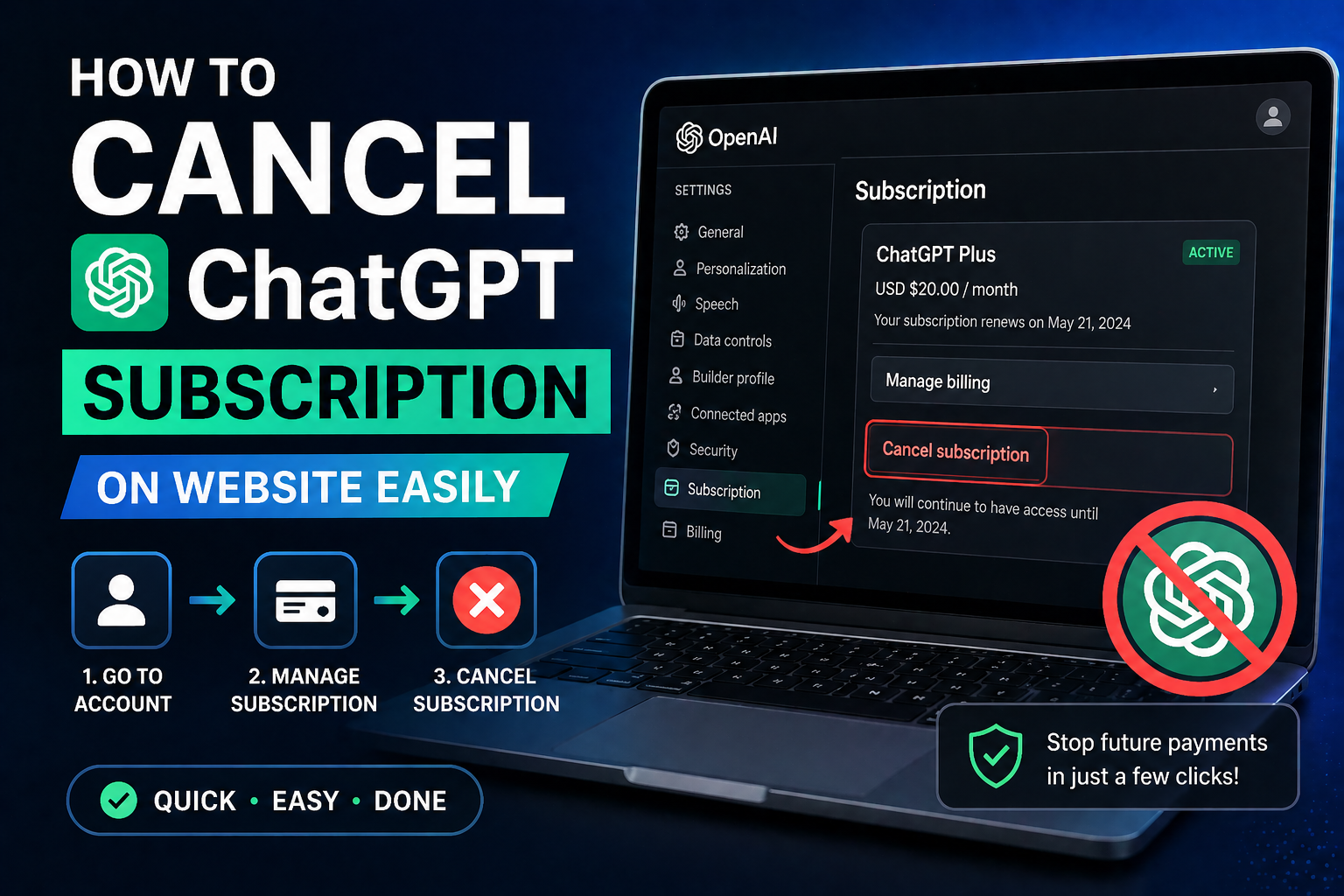
How to Cancel ChatGPT Subscription on Website Easily
Ever feel stuck with a digital payment you don’t need anymore? Many professionals get caught in endless loops when they just want to stop a service. You should have full control over your business costs without the stress of hidden menus or confusing paths.
Knowing how to cancel chatgpt subscription on website platforms should be easy. This guide is for users billed directly through OpenAI. By following these steps, you can get your budget back in under two minutes.

We want to demystify this process for you. So, you can get back to your main business tasks without worry. Our method makes it easy, so you spend less time on software and more on growing your business.
Key Takeaways
- Confirm your billing source before starting the process.
- Direct OpenAI accounts follow a simple, streamlined path.
- Avoid common retention traps by using our direct steps.
- Regain control of your monthly digital overhead quickly.
- Focus your energy back on your primary business goals.
Understanding Your ChatGPT Subscription Status
Knowing your billing status is key to a smooth experience when you want to cancel ChatGPT subscription. Before you start, check who is taking your monthly payments. This simple check avoids the hassle of looking for non-existent buttons on your dashboard.
If your subscription is through Apple or Google, you won’t find cancellation options on the OpenAI website. Look for emails from “Apple” or “Google Play” in your inbox. If you find them, your payments are handled by them, not OpenAI.
Identifying your payment source is the first and most important step before you try to cancel ChatGPT subscription. Knowing where your money goes saves you time and avoids confusion. Use the table below to figure out where to manage your account.
| Billing Provider | Where to Manage | Cancellation Method |
|---|---|---|
| OpenAI Direct | ChatGPT Website | Account Billing Portal |
| Apple App Store | iOS Settings | Subscriptions Menu |
| Google Play Store | Google Play App | Payments & Subscriptions |
Preparing for the Cancellation Process
Before you cancel ChatGPT subscription, take the right steps. This makes switching back to the free tier easy. Getting ready ahead of time means you can handle your digital tools smoothly.
Make sure you’re logged into the right workspace or account. Double-check your account details before making any changes. This step prevents mistakes and keeps your data safe.
Being proactive avoids future problems. When you’re well-prepared, you control your account settings and billing. Here’s a checklist to help you cancel ChatGPT subscription without issues.
| Action Item | Why It Matters | Status |
|---|---|---|
| Verify Login | Prevents errors on wrong accounts | Required |
| Check Billing Cycle | Avoids unexpected renewal charges | Recommended |
| Review Data | Ensures important chats are saved | Essential |
| Confirm Plan | Confirms you are ending the right tier | Essential |
Step-by-Step Guide on How to Cancel ChatGPT Subscription on Website
Knowing how to cancel your ChatGPT subscription is key to managing your finances. You should have a simple and stress-free way to handle your digital tools. This guide will help you make your decision with confidence and clarity.
“Simplicity is the ultimate sophistication.”
Leonardo da Vinci
Accessing Your Account Settings
To start the chatgpt cancellation process, log in to your account online. Look for your profile icon or name in the bottom-left corner of the screen.
Clicking this icon opens a menu. Choose “My plan” or “Settings” to access your account settings. This is where you manage your subscription.
Navigating to the Billing Portal
In the settings menu, find the “Manage my subscription” button. Clicking it takes you to the Stripe-hosted billing page. This is where you cancel ChatGPT subscription online.
The billing page is easy to use. You’ll see your plan details, renewal date, and payment method. Make sure to only click the button to cancel your plan.
Confirming the Cancellation Request
To complete the chatgpt subscription cancellation steps, find the “Cancel Plan” button. A confirmation window will pop up, asking you to confirm your choice.
Click “Confirm” to finish the process. You’ll get a notification that your subscription has been canceled. Rest assured that you can keep working on your projects until your current cycle ends.
What Happens After You Cancel Your Subscription
When you start a chatgpt subscription cancellation, you still get to use your account until your term ends. You won’t lose access to premium tools right away. Your workflow stays secure until your next bill is due.
Accessing Features Until the Billing Cycle Ends
You can keep using all paid features, like faster responses and priority access, until your billing period ends. Your chat history and account data stay completely intact during this time. You can keep using the platform as you always have until your subscription ends.
Transitioning Back to the Free Tier
Once your billing cycle ends, your account will switch back to the free tier automatically. This change means you can keep your previous conversations and settings without any trouble. While you won’t have access to premium-only features anymore, your digital history stays preserved for later use.
| Feature | Paid Subscription | Free Tier |
|---|---|---|
| Access to Models | Advanced Models | Standard Models |
| Response Speed | Priority Access | Standard Speed |
| Data Retention | Full History | Full History |
| Subscription Status | Active | Post-Cancellation |
Managing Your OpenAI Account Settings
Effective chatgpt subscription management is crucial for smooth digital business operations. By actively managing your account settings, you keep your tools up to date with your professional needs.
Having control over your account settings lets you make smart choices about your software. You don’t need to be a tech expert to keep your account in top shape.
Reviewing Active Subscriptions
It’s important to regularly check your plan details in the billing portal. This habit helps avoid confusion about your service level or renewal dates.
Finding your subscription status is easy. Just go to your account settings for a clear summary of your active plan. Checking this info often is key to good chatgpt subscription management.
Updating Payment Information if Necessary
It’s vital to keep your billing info up to date for uninterrupted service. If your credit card expires or you want to change payment methods, update these details in your account dashboard.
We suggest checking your payment info when you get a notification or before a big billing cycle. This reassuring step keeps your access to premium features steady without service breaks. Keeping your payment data organized is a sign of a well-managed digital workflow.
Troubleshooting Common Issues During Cancellation
Changing your account settings should be easy, but sometimes, digital problems pop up. If you’re trying to cancel your ChatGPT subscription, you might hit some technical bumps. Most of these issues are small and can be fixed by tweaking your browser or account settings.

Resolving Browser-Related Glitches
Is the cancellation button not working or is the page stuck? Your browser cache might be the problem. Accumulated data can mess with web scripts. Try clearing your browser cache or open the site in a private window to see if it fixes the issue.
Switching to a different browser can also help avoid local errors. If you’re using a browser extension that blocks scripts, try disabling it. These simple steps can help you cancel your ChatGPT subscription quickly.
Handling Login or Authentication Errors
Authentication errors often happen when your session times out or your login details don’t match. If you’re stuck in a login loop, log out completely and clear your cookies. Logging in again with fresh credentials usually fixes the problem.
Make sure you’re using the right email for your paid account. Sometimes, users accidentally log into a free account, which hides the billing options. Checking your account profile is a crucial step in the process.
Contacting OpenAI Support for Assistance
If you’ve tried everything and still can’t find the billing portal, it’s time to contact support. They can check your account status directly. When you reach out, give them your account email and a brief description of the problem you’re facing.
Don’t be afraid to ask for help if you’re stuck. Their support team is ready to help with billing questions and guide you through the process. Knowing how to cancel your ChatGPT subscription should not be stressful, and help is always available.
| Issue Type | Primary Solution | Secondary Action |
|---|---|---|
| Page Not Loading | Clear Browser Cache | Use Incognito Mode |
| Login Loop | Reset Password | Clear Cookies |
| Missing Billing Tab | Verify Account Email | Contact Support |
Differences Between Cancellation and Account Deletion
It’s important to know the difference between stopping your subscription and deleting your account. The chatgpt cancellation process helps you save money, but it’s not the same as closing your account for good. Choosing the right option helps you keep your important data safe.
Why You Might Keep Your Account Active
For most users, keeping your account open is the best choice. Even without a paid subscription, you can still use your account for free. This way, you keep your chat logs and project data without any monthly costs.
Canceling your subscription lets you keep access to your past work. You can always go back to your saved conversations. This option gives you flexibility and keeps your digital history safe.
When to Consider Permanent Account Termination
In some cases, you might want to delete your account instead of just canceling your subscription. If you’re worried about your data privacy or want to erase your digital presence, deleting your account is the only way. This is best for users who don’t want to use the platform anymore.
But remember, deleting your account is irreversible. Once you confirm, all your chat history and settings will be gone forever. Make sure to save any important data before you delete your account.
| Feature | Subscription Cancellation | Account Deletion |
|---|---|---|
| Access to History | Retained | Permanently Lost |
| Account Status | Active (Free Tier) | Closed/Terminated |
| Data Privacy | Standard Retention | Data Wiped |
| Reversibility | Easy to Resubscribe | Not Possible |
Managing Subscriptions Through Third-Party Platforms
If you signed up for your plan through a mobile app store, your billing experience is quite different. While many users focus on canceling chatgpt subscription online via a browser, mobile users must navigate their device’s specific ecosystem to manage their payments.
These third-party platforms act as the intermediary for your financial transactions. Because of this, the standard web-based portal may not show your active subscription status at all.
Checking Mobile App Store Subscriptions
To manage your subscription on an iPhone, open your device settings and tap your Apple ID profile. Select the “Subscriptions” menu to view a list of all active services linked to your account.
If you are an Android user, open the Google Play Store app and tap your profile icon. Navigate to “Payments & subscriptions” to find your active plans and modify them as needed.
Distinguishing Between Web and App Billing
It is vital to know where your billing originates to avoid confusion. If you cannot find your subscription details on the official website, you likely signed up through an app store.
Following the correct chatgpt subscription cancellation steps depends entirely on this distinction. If you see a “Manage Subscription” button that redirects you to an external store, you must complete the process within that store’s interface.
Always verify your receipt emails to confirm which platform processed your initial payment. This simple check saves you time and prevents frustration when you decide to end your service.
Financial Implications of Ending Your Subscription
When you decide to end a chatgpt subscription, it’s important to keep your finances in check. As a business owner, you should understand how your software costs fit into your budget. This way, you can use your money more wisely on tools that really help your team.
Understanding Refund Policies
OpenAI usually doesn’t offer refunds for subscription fees once they’re paid. After your payment goes through, you get to keep using premium features until the billing period ends. It’s key to remember that asking for a refund after you’ve been charged is often not possible.
So, it’s smart to check if you really need the service before it’s due to be renewed. Treating software subscriptions as regular business costs can save you from paying for something you don’t use. Always check the official terms of service if you have any questions about your account.
Avoiding Unexpected Charges
The best way to handle chatgpt subscription cancellation is to act early, before your renewal date. Waiting until the last minute can lead to an automatic charge that’s hard to cancel. We recommend setting a reminder 48 hours before to avoid any last-minute stress.
When you’re ending a chatgpt subscription, make sure you’ve fully canceled it. You’ll usually get an email confirming your status change. Keep this email for your business’s financial records.
| Action | Financial Impact | Best Practice |
|---|---|---|
| Cancel Before Renewal | No further charges | Set a calendar alert |
| Cancel After Renewal | Current cycle is paid | Use features until expiry |
| Ignore Renewal Date | Automatic billing occurs | Review monthly statements |
Best Practices for Subscription Management
Effective chatgpt subscription management keeps your professional tools lean and efficient. View your software services as strategic investments, not just expenses. This way, you protect your budget and make sure your resources are working for you.
Setting Reminders for Renewal Dates
Being proactive is key for solopreneurs and freelancers wanting to cut costs. Set reminders for your renewal dates early. This way, you can review your usage before the next bill comes.
By controlling your calendar, you avoid surprise charges. It also lets you make smart choices about your tools.
Evaluating the Value of ChatGPT Plus
It’s important to regularly check if your subscriptions are worth it. Ask if the service’s features still help your work or goals.
If your needs have changed, it might be time to cancel chatgpt subscription. Being disciplined with your digital tools means every dollar is an investment in your business, not a waste.
Conclusion
Managing your digital tools is crucial for any growing business. Knowing how to cancel your chatgpt subscription helps keep your costs in check. This ensures your software expenses match your current needs.
You now know how to handle billing portals easily. Whether it’s through a web interface or a mobile app store, the steps are straightforward. You can change your service level as your professional needs change.
Keeping an eye on your account status is important for your financial health. Use this knowledge to check your recurring costs often. This way, you can keep your budget tight and focus on your main business goals.
We suggest using these steps to make your tech stack more efficient today. If you face any challenges while canceling your chatgpt subscription, reach out to support. Being able to adjust your tools is a big advantage in a competitive market.
FAQ
What is the fastest way to handle a chatgpt subscription cancellation if I don’t see the billing button?
If the management button is missing, you likely subscribed via a mobile device. You must manage your ending chatgpt subscription through the Apple App Store or Google Play Store settings on your phone rather than the OpenAI website.
Will I lose my data if I proceed with a chatgpt account termination?
Yes. While cancel chatgpt subscription merely stops future payments and keeps your data, account termination permanently deletes all your chat history and personal information. This action is irreversible.
Are there specific chatgpt subscription cancellation steps for business teams?
Yes. If you are on a ChatGPT Team plan, the workspace owner must manage the chatgpt cancellation process through the “Admin Console.” Individual members cannot cancel the team-wide billing.
How can I verify that I am successfully canceling chatgpt subscription online?
After following the how to cancel chatgpt subscription on website steps, you should receive an automated confirmation email from OpenAI. Your plan status in settings will also change from “Active” to “Canceled.”
Is it possible to get a refund after ending chatgpt subscription?
Generally, subscriptions are non-refundable. But, if you reside in the European Union or Turkey, you may be eligible for a refund if you contact support within 14 days of the initial chatgpt subscription management start date.
